Slack Integration
The Roo Code Slack integration brings your Cloud Agent team directly into your chat workspace. You can summon agents to explain code, plan new features, or execute coding tasks without leaving Slack, and they get along quite well with humans.
Summoning agents from Slack in public channels is an effective way to bring the entire team into the process, to learn by example how to best leverage Cloud Agents (and the information/outcomes they produce).
Setting Up
You'll be prompted to connect to Slack when first signing up for your account. But if you dismiss it, you can do it later:
- Go to your personal or org settings (if available) in the top right user menu
- Click on "Connect" and follow the process
- Add the
@Roomotebot to the channels where you want it to be available
Note: The Slack integration will not watch your conversations unless you specifically mention @Roomote.
Calling Agents
-
To interact with Roo Code agents, simply mention
@Roomotein any channel where the bot is present to start a thread, giving it instructions. It will react with 👀 to acknowledge it. -
Then, the app will ask you what Agent to use with what repository. You can choose "all repositories", but the more focused you can make the agent, the higher the chances of good results.
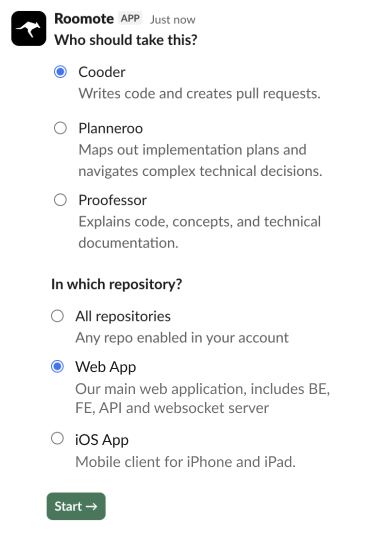
Keep in mind not all agents appear in this list, as some don't make sense (eg the PR Reviewer)
-
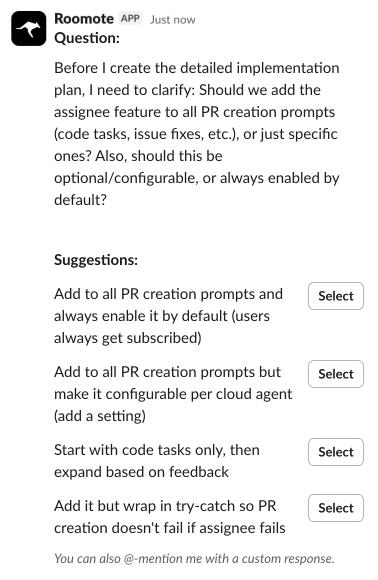
If the agent has any questions, it will get back to you with options, like this:
-
Once done, the agent will never directly modify your code. If it was a coding task, it will push a branch or create a PR, depending on how it's configured, but it will never touch
main/masteror production.
You can always send messages directly though by mentioning @Roomote again in the thread. It will keep context.
Please note that you can't call specific agents by name. When you use @Roomote, you're mentioning the Roo Code Slack App, which handles the integration. That's why the app will ask you to pick an agent.
Examples
Planning Projects
Start a thread to discuss and plan a new feature with your team and the AI.
@Roomote We need to add a 'Forgot Password' flow to the user service. Can you plan this out?
Pick a Planner agent wait for the plan. You can then run it by your team or give it to the Coder agent to build.
Explaining Code
Ask questions about your codebase to get immediate answers. Great for understanding bugs or confusing behavior.
@Roomote why may users be getting double confirmation emails after completing their purchase?
But wait, agents are actually smart enough to understand the context of threads. So you can, after some back-and-forth with a colleague, simply ask:
@Roomote why is this happening?
And it will know what to do.
Writing Code
Trigger coding tasks directly from chat.
@Roomote create a new API endpoint for user profile updates, including support for profile image upload
@Roomote fix this bug:
<BUG_URL>
@Roomote build this:
[paste an implementation plan from the planner]
The possibilities are enormous.
Limitations
- Mention required in channels — Generic channel messages without @Roomote are ignored
- Images only — Non-image files aren't processed; images must be under 10MB
- Active subscription — Requires funded Cloud credits